Click an Ad

If you find this blog helpful, please support me by clicking an ad!

Friday, February 22, 2013

Meet My New Dell Equallogic PS6500ES SAN

I don't have anything big to write about, but I've got a lot of small tips and trick and info things bookmarked in my "To Blog About" list. So, I thought I would get a few of them out of the way.

What I've been doing the past few months is implementing a new SAN and preparing to upgrade all 5 of my VMware ESX 4.1 hosts to version 5.0. Whenever I say that, someone will inevitably pipe up and say "why don't you just go to the newest 5.1 release?". The reply is that my servers aren't on the HCL for that version. They're not THAT old though - HP ProLiant DL385 G5's. I'll upgrade in a couple of years when my hosts get replaced as part of my 5-year cycle. These are doing just fine performance-wise.

The search for a new SAN has been really frustrating, because there are SO many options. In the end, I just wanted shared iSCSI storage that would meet some space and performance goals (Veeam ONE monitoring helped a great deal here), and that would replicate across a 1Gbps WAN fiber link to our other facility across town. Another consideration was that because I'm no storage expert, we needed something that wasn't too complicated and that was widely used, allowing me to ask questions in forums and get responses from people familiar with that storage platform.

I am no storage specialist, and comparing SAN solutions offered by different vendors was pretty challenging. I have to wear many hats and really can't specialize in anything in my current role. It was frustrating to know that there aren't a lot of solid metrics that you can use to compare different storage solutions, unless you get the hardware in-house and run your own tests. I was operating on IOPS and latency numbers until I learned that vendors can throw up whatever numbers they want and they would be true; you have to look at how the tests are run (random vs sequential, data block size, etc). Here are some really good reads I ran across while making my decision. They also got me up to speed on server storage in general:

Pointing out the IOPS fallacy:
http://recoverymonkey.org/2012/07/26/an-explanation-of-iops-and-latency/

This article outlines the folly of using RAID5 with a hot spare. As a result of this article, all of my local storage is RAID10 from now on, as it's the safest for my data.
http://www.smbitjournal.com/2012/07/hot-spare-or-a-hot-mess/

This Techrepublic article got me up to speed on different types of drives and their performance difference:
http://www.techrepublic.com/blog/networking/how-sas-near-line-nl-sas-and-sata-disks-compare/5323

In the end, it came down to EMC vs Dell. Price and usability were the main concerns. We decided we wanted to fortify our SAN performance with SSDs and auto-tiering, which automatically moves "hot" data blocks up to SSD storage for better performance. On an even pricing level, Dell offered over 2 TB worth of SSD space, while the VNX recommended to us only had 200GB. Another big difference between the two (and this is just my take) is that EMC SANs seem to be designed for use by an actual storage engineer. Sure, EMC will point you to the VNXe line, but we're past that in terms of performance/capacity/options. I want my SAN to be set it and forget it. In the end, we bought an Equallogic PS6500ES. It was installed last Friday.

I moved about 10 testing VMs onto the storage and was looking at performance in SAN HQ. SAN HQ is Dell's SAN monitoring software, which is very nice, and very easy to use. I wish I could dig a little deeper (as far as auto-tiering goes), but it is what it is. What I found was some pretty terrible latency numbers! With my migration less than a week away, I went into panic mode and called my Dell Storage reps to find out why my performance sucked. Here are the IOPS and latency graphs I was seeing (acceptable latency is below 20ms):
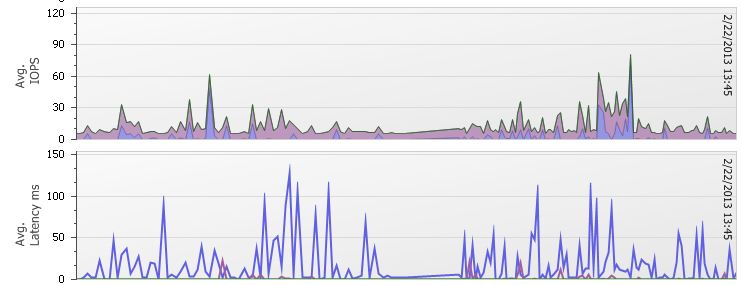

The Dell reps talked me down off the ledge and said that because my SAN wasn't doing anything (note the low IOPS - in production this thing will be humming along at 2-3000), the hard drives were having to fire up to serve my I/O requests from scratch. I fired up a few VMs with IOMeter, which allows you to do some pretty neat I/O benchmarking tests and followed this guide (second paragraph from the end, and it is just a quick how-to on IOMeter) to create a boatload of I/O. IOMeter is a really neat app. Not only does it create I/O, but you can specify the size of the blocks, read/write percentage, and whether they are random or sequential.

Sure enough, things changed quite a bit:

At around 6000 IOPS, I set off warnings that I had saturated my 3 1Gb iSCSI links. While you can't really tell because of the scale of the graph, my latency stabilized at around 12ms during heavy read and write activity. In case you're interested, this load was 60/40 read write with 64K blocks and all random.

Here's another nice How-To style article on IOMeter.

Thursday, February 21, 2013

Direct SAN connection for Veeam - Connecting your VMFS disks to your Windows Server

This has been written about a hundred times or so, but I'm writing it here so it can be found all in one spot (for me as well as my readers). I had to go all over the web to gather bits and pieces of this information.

My Veeam server (running Windows 2008 R2) has a fiber connection (though this same principal applies to iSCSI). One of the scariest things I have ever done in my nine years of IT has been to let this Windows server "see" my production VMFS volumes. When I say "see" what I mean is that in the Windows disk management console, your VMFS volumes will be listed, but will be offline and not mounted in Windows with a drive letter.


BEFORE you give your server access to your VMFS volumes on the SAN side through an access control list of some sort, you need to prep your Windows server first. I have read that Veeam does this automatically on installation, but I'd rather do it myself and know absolutely that it's done. From everything I've read, if Windows initializes a VMFS volume and assigns it a drive letter, then that VMFS volume is hosed (shudder). Even worse, you're probably just installing Veeam, so you don't even have the best virtual machine backup software protecting you yet!

On your Windows box, you should do the following:
1. Open a command prompt (run as administrator)
2. Type this command and press enter: diskpart
   This opens the diskpart shell

3. Type this command and press enter: san
   This returns the current SAN policy. The SAN policy is what tells the system to automatically bring new media online or offline. What you want to see is "Offline All". If you see "Online All", simply enter the following to change it: san Policy=OfflineAll
    Type the SAN command again to ensure it's set the way you need it.

4. Type this command and press enter: automount
    This returns the current automount policy. You want to see the automatic mounting of new volumes DISABLED!!!!!! If yours returns enabled, run the following command: automount disable

5. Reboot your system so the changes take effect.

After rebooting, it pays to check the policies again. Half a minute now could save you a lot of explaining and hours of restoring from backups later. If you need help from within diskpart, or just want to read more about the syntax, type help within the shell. It also works for commands, like so: help san.

Monday, February 4, 2013

Deleting Recycle Bin for All Users

I didn't know that this happened, but let's say that I'm logged in as the local administrator on a server. I download and install a bunch of programs. I delete the installation programs and stuff from the server  and then I log off. Months later, I log in to the server as myself, because I'm running out of space on my C drive and need to clean some things out. I delete some log files and old windows updates, and empty the recycle bin. DID YOU KNOW that I only emptied the recycle bin for my own user account?

I never really thought about it before, but it makes sense that the recycle bin is not shared space. Each user account on the computer has its own iteration. Personally, I keep my recycle bin cleaned out pretty regularly, but I'm aware that some people use it for.... longer. As an aside, shame on you if you use the Recycle Bin (or deleted items in Outlook) as somewhere to store things you actually want. I've seen this.

If there are more than one user account on the computer, then you could save tons of space by emptying EVERYONE'S recycle bin all at once!

For Window XP, Vista, and Server 2003 operating systems, use this command:
rd /s c:\recycler

For Windows 7, Windows 2008, and 2008R2, use this:
rd /s c:\$Recycle.Bin

Thursday, January 24, 2013

Get your Windows 8 before 1/31, and some misc items....

It's been exactly one month since my last post. There were the holidays, and then a flurry of work and sick kids and all the stuff that prevents people from writing. So, here's a whole bunch of stuff in one post.


  • If you're not sure whether you'll get Windows 8, I would suggest you pick up a copy before the 31st of January. Until then, you can get it for $39.99. If you wait until after that, though, it will set you back $199.99! I might not install Windows 8 soon, but I'm not in the position to wager $160 that I won't ever upgrade, so I picked up my copy. You can get it here. Just run the upgrade advisor on your computer and afterwards you can buy a key and download the ISO file.


  • I finally conquered a performance irritation on one of my file servers! After I started monitoring my virtual servers with Veeam ONE monitoring, I was getting emails every Wednesday morning at random times between 2AM and 5AM that there was high CPU load. The CPU was maxed out, actually. I would set my phone's alarm to get up and log into the server, and the load would stop. There were no scheduled tasks, and it wasn't the backups. I was stumped. The culprit seemed to be svchost.exe, which is an all-encompassing process for your Windows services, which made things even tricker. I found a command that would let me peer into a svchost.exe process to see which services were attached to it: tasklist /svc /fi "imagename eq svchost.exe, but again every time I would log into the server it would calm down. Last week, we reorganized the server room and had to take the entire network down. It was an all-hands-on-deck outage. I was in at 12:30AM, and we wrapped things up at around 6. Sure enough, the process was going berserk again!!! It occurred to me that perhaps I could run commands from a remote powershell session, and I finally discovered the culprit: defrag!!!!! GRRRR!!!!

  • While I was doing patching this month, I thought it might be handy to have some way of reporting which patches were installed, and when. If something went awry, I would like a list of the patches that were installed as part of my "what changed" troubleshooting procedure. I came up with this script:
$HostChoice = (Read-Host -Prompt "Please Enter the computer name you'd like to query")
$DaysBackChoice = (Read-Host -Prompt "How many days would you like to go back?")

#Get the date from X Days ago
$DateXDaysAgo = ((get-date).adddays(-$DaysBackChoice).toshortdatestring())
$DateXDaysAgo = ($DateXDaysAgo + " 12:00:00 AM")

#Get the info from the remote computer and pass it to GridView
Get-WMIObject -ComputerName $HostChoice -Class Win32_QuickFixEngineering | where {$_.InstalledOn -ge $DateXDaysAgo} | sort InstalledOn | out-gridview